Message Reports
Lightning includes a built-in system for members to report suspicious or rule-breaking messages.
Set Up
Run @Lightning reportsetup.
Click Set report channel, then select where reports should be sent.
Use a private channel that only moderators/admins can access.
Once set, members can start reporting messages immediately.
How to report messages
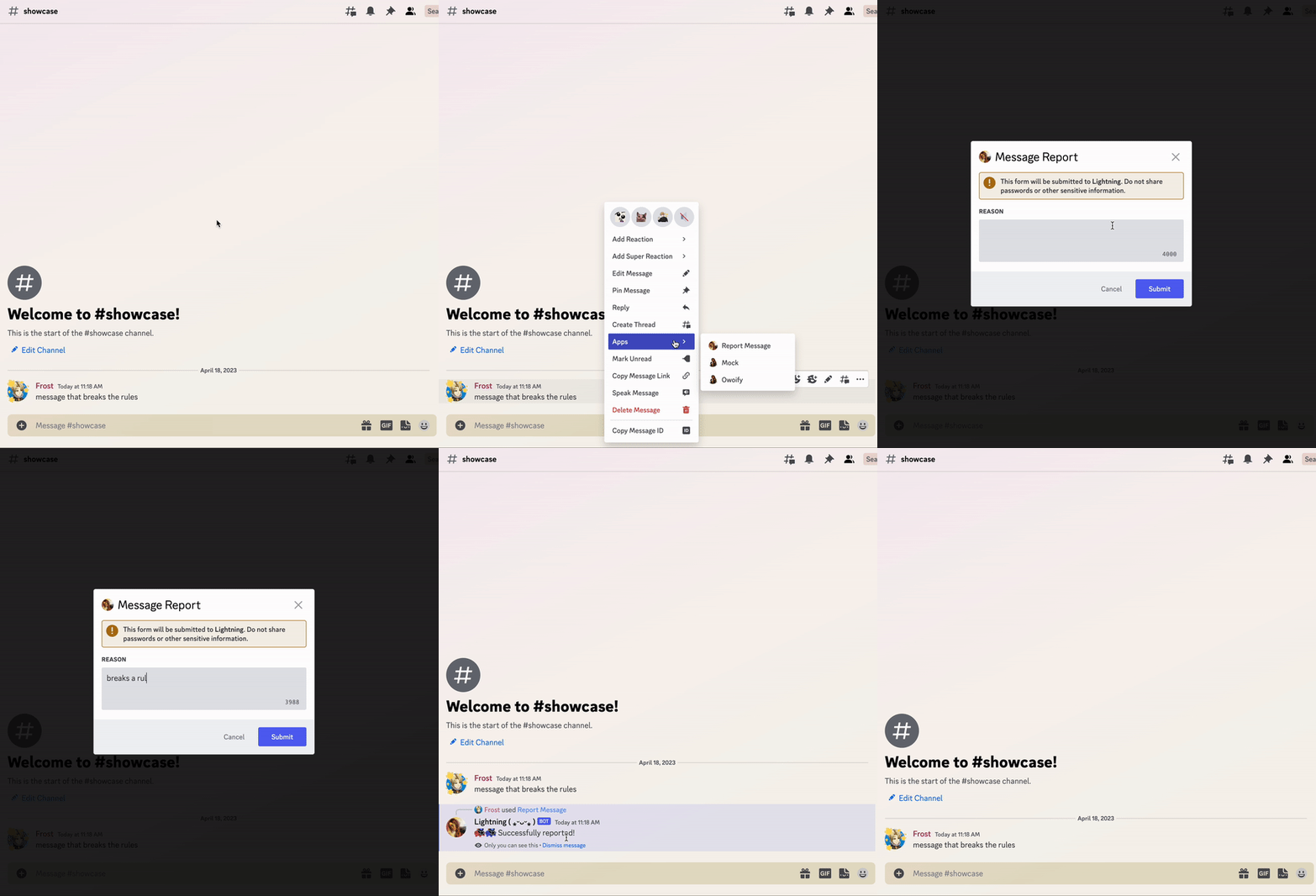
Members can report messages by right-clicking a message, opening Apps, and clicking Report Message.
After confirmation, the report appears in your configured reports channel.
Included below is an example of how to report messages.
Message Report Dashboard
Each report creates a dashboard message for staff, so moderators can review and act quickly.
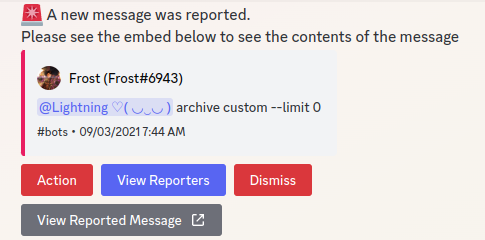
Here's a quick breakdown of all the buttons you will see.
Action
Apply a moderation action to the message author.
View Reporters
See who reported the message and their reasons.
Dismiss
Close the report if no action is needed. You can reopen it later if needed.
View Reported Message
Jump to the original message location and view its full content.
Tips
- Encourage members to include a clear reason when reporting.
- Keep report channels staff-only to avoid leaking reporter identity.
- Review older dismissed reports occasionally for repeat patterns.